How to Make a Minecraft Server: Complete Step-by-Step Guide for Free (2026 Updated)
If you've ever wanted to play Minecraft with friends on your own custom world, learning how to make a Minecraft server is the perfect solution. Setting up your own server gives you full control over game settings, mods, and player access. The best part? You can learn how to make a Minecraft server for free right on your own computer using the official Java Edition server software.
This comprehensive guide explains how to make a Minecraft server on your PC in simple, beginner-friendly steps. Whether you're new to Minecraft or an experienced player, you'll have your server running in no time. We'll cover everything from downloading the necessary files to launching the server and joining it. Let's dive into this step-by-step tutorial on how to create a Minecraft server at home.
Prerequisites for Making Your Minecraft Server
Before you start learning how to make a Minecraft server, make sure you have:
- A computer with decent specs (at least 4GB RAM recommended for smooth performance).
- Minecraft Java Edition installed (the server works with the official Java version).
- A stable internet connection (especially if friends will join from outside your network).
This method focuses on how to make a free Minecraft server that runs locally on your machine.
Step 1: Download the Official Minecraft Server File
The first step in how to make a Minecraft server is downloading the server software.
- Open your web browser and go to the official Minecraft website (minecraft.net).
- Navigate to the download section and find the "Minecraft Server" download link.
- Download the latest
server.jarfile (this is the core file needed to run your server).
Step 2: Create a Dedicated Server Folder
To keep things organized:
- Create a new folder on your desktop or in a convenient location.
- Name it something clear like "Minecraft Server" or "My MC Server."
- Move the downloaded
server.jarfile into this folder.
This dedicated folder will hold all server-related files as you continue learning how to make a Minecraft server on Windows (or Mac/Linux—the process is similar).
Step 3: Install Java (If Needed) and Run the Server Jar
Minecraft servers require Java to run.
- Double-click the
server.jarfile in your folder. - If it doesn't run properly (e.g., nothing happens or an error appears), you need to install Java.
- Download and install the latest Java from the official Oracle website (search for Java SE Development Kit or JDK).
- Once installed, try running
server.jaragain. The server will generate additional files in the folder.
Step 4: Accept the EULA (End User License Agreement)
After the first run:
- Open the newly created
eula.txtfile in a text editor (like Notepad). - Change the line
eula=falsetoeula=true. - Save the file and close it.
This step is essential for how to make a Minecraft server legally and ethically.
Step 5: Configure Server Settings (Optional but Recommended)
For customization:
- Open the
server.propertiesfile with a text editor. - Adjust settings like:
gamemode=survival(change to creative, etc.)difficulty=easymax-players=10pvp=true(player vs. player)
- Save and close the file.
This is where you personalize your server while following this guide on how to make a Minecraft server for free.
Step 6: Start the Server
Double-click server.jar again (or create a shortcut for easier access). A command window will open showing the server starting up.
Step 7: Join Your Minecraft Server
- Launch Minecraft Java Edition on your computer.
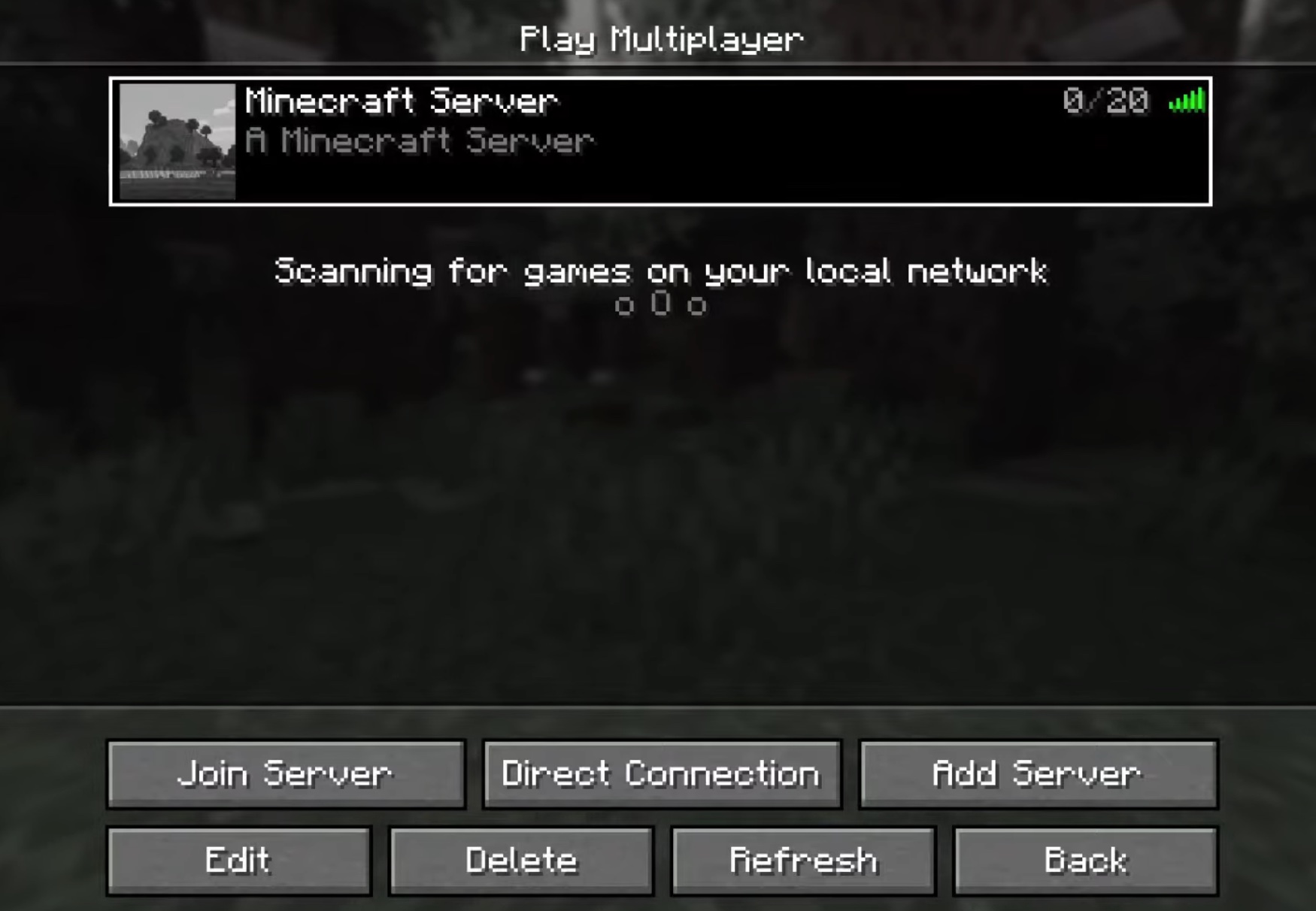
- Go to Multiplayer > Add Server.
- Enter "localhost" as the server address (since it's running on your own PC).
- Join and start playing!
Allowing Friends to Join (Advanced)
If you want others to connect from outside your local network, you'll need to set up port forwarding on your router (default port is 25565). This goes beyond basic how to make a Minecraft server at home, but many online guides can help with your specific router model.
Keep in mind: Your computer must stay on and running the server for others to play.
Core Takeaways: Why Make Your Own Minecraft Server?
Learning how to make a Minecraft server gives you unlimited customization, private worlds, and fun multiplayer experiences without monthly fees. This free method is ideal for small groups or testing, while paid hosting services offer 24/7 uptime for larger servers.
Follow this step-by-step guide on how to create a Minecraft server on your PC, and you'll be hosting epic adventures in no time!