How to Make a Minecraft Server on Your PC: A Complete Step-by-Step Guide

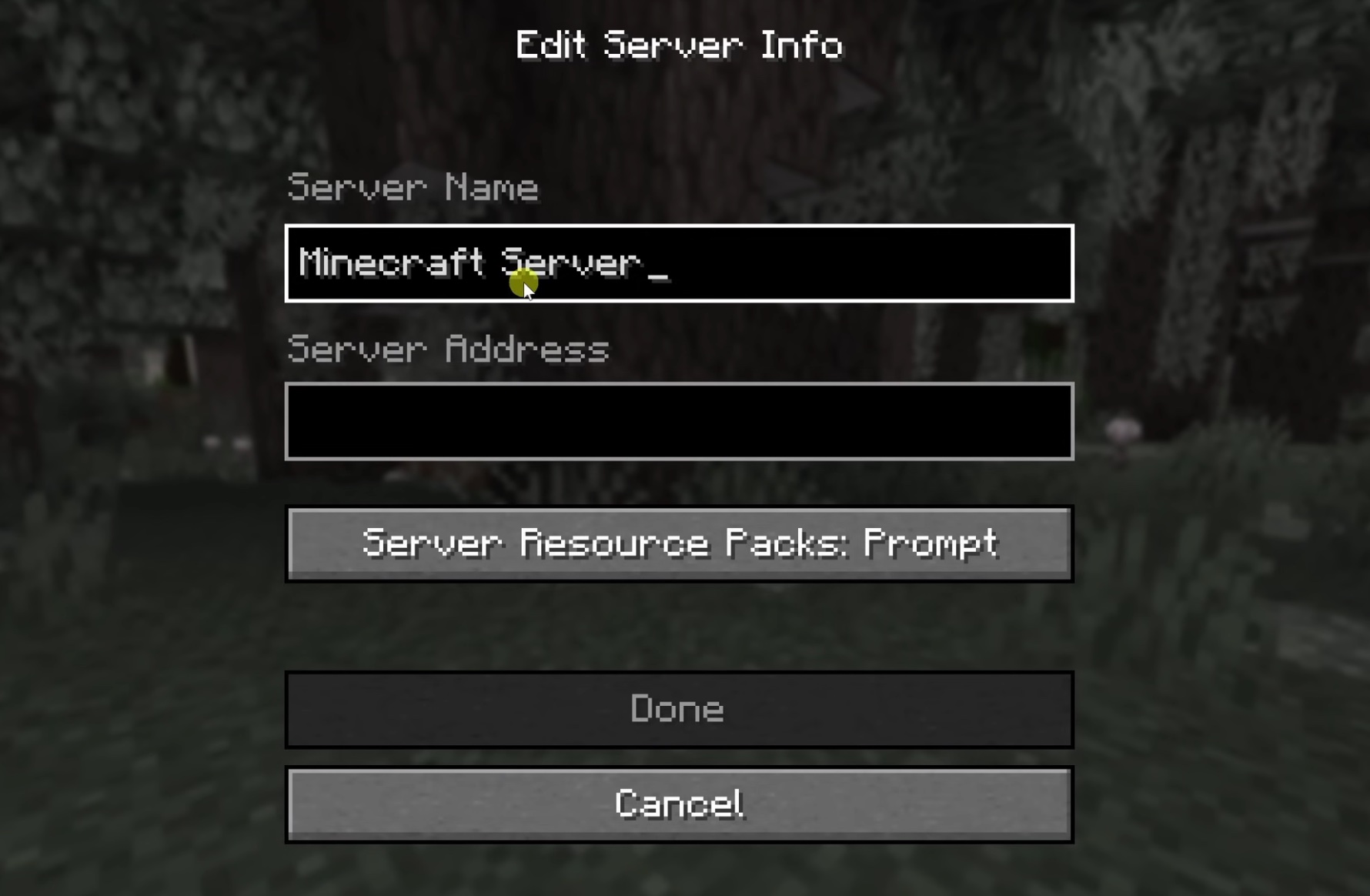
Creating your own Minecraft server lets you play with friends in a customized world without paying for third-party hosting services. This guide explains how to make a Minecraft server for free using the official Java Edition server software on a Windows PC. It covers everything from downloading files to allowing friends to join from anywhere. The process is straightforward, but it requires Java installation and basic configuration. For external access, you'll need to set up port forwarding on your router.
Core Benefits and Key Points:
- It's completely free (no subscription needed).
- You have full control over settings like game mode, difficulty, and player limits.
- Local play works easily on the same network.
- External play requires port forwarding for security and connectivity.
- This works best with Minecraft Java Edition (Bedrock has a separate process).
Follow these steps carefully. Create a dedicated folder for all server files to stay organized.
Step 1: Download the Minecraft Server Files
- Visit the official Minecraft website: https://www.minecraft.net/en-us/download/server
- Download the latest server.jar file (for Java Edition).
- Create a new folder on your desktop or elsewhere (e.g., name it "Minecraft Server").
- Move the downloaded server.jar file into this folder.
This file contains the core server software from Mojang.
Step 2: Install Java
Minecraft Java servers require Java to run.
- Open Command Prompt in your server folder: Navigate to the folder in File Explorer, click the address bar, type
cmd, and press Enter. - Check if Java is already installed by typing:
java -version
If it shows a version (preferably Java 17 or higher), you're good. - If not installed, install OpenJDK using Windows Package Manager:
winget install Microsoft.OpenJDK.21
(This installs a compatible version quickly.) - Verify again with
java -version.
Step 3: Run the Server for the First Time and Accept the EULA
- In the same Command Prompt, run:
java -jar server.jar --nogui
This generates initial files but stops due to the EULA. - Open the new eula.txt file in Notepad.
- Change
eula=falsetoeula=trueand save. - Run the command again:
java -jar server.jar --nogui
Allow any Windows firewall prompts.
The server will now generate world files and start running.
Step 4: Create a Batch File for Easy Server Launch
Typing the command every time is inconvenient, so create a startup script.
- In File Explorer, enable file extensions (View > Show > File name extensions).
- In your server folder, create a new text file and rename it to start.bat.
- Right-click start.bat, choose Edit, and paste:
@ECHO OFF java -Xms2G -Xmx8G -jar server.jar nogui pause-Xms2Gsets minimum RAM (2 GB).-Xmx8Gsets maximum RAM (8 GB—adjust based on your PC's total RAM; check in Task Manager > Performance).
- Save the file.
- Double-click start.bat to launch the server in the future.
Step 5: Configure Your Server Settings
- Open server.properties in Notepad (generated in your folder).
- Edit key settings (examples):
difficulty=easy(or normal, hard)gamemode=survival(or creative)max-players=10(set your limit)motd=A Fun Minecraft Server(message players see)
Full options are at: https://minecraft.wiki/w/Server.properties
- Save and restart the server.
Step 6: Become an Operator (Admin)
- With the server running, type in the console:
/op YourMinecraftUsername
(Replace with your exact in-game username.) This gives you full admin commands.
Step 7: Connect to Your Server Locally
- Launch Minecraft Java Edition.
- Go to Multiplayer > Direct Connection.
- Enter
localhost(or127.0.0.1) and join.
Step 8: Connect from Another Device on the Same Network
- On the host PC, open Command Prompt and run
ipconfig. - Note the IPv4 Address (e.g., 192.168.1.100).
- On the other device, in Minecraft Direct Connection, enter:
YourIPv4Address:25565
Step 9: Set Up Port Forwarding for External Access
To allow friends outside your network to join:
- On the host PC, run
ipconfigand note the Default Gateway (your router's IP, e.g., 192.168.1.1). - Open a web browser and enter the gateway IP to access router settings (login with admin credentials—often on a sticker on the router).
- Find the Port Forwarding or Virtual Server section.
- Add a new rule:
- Service Name: Minecraft
- External Port: 25565
- Internal IP: Your PC's IPv4 Address
- Internal Port: 25565
- Protocol: TCP/UDP (or Both)
- Save and apply.
- Find your public (WAN) IP at sites like whatismyipaddress.com.
Step 10: Connect from Outside Your Network
Share with friends: YourPublicIP:25565
They enter this in Minecraft Direct Connection.
Tips and Warnings:
- Allocate RAM wisely—don't exceed your PC's available memory to avoid crashes.
- Your public IP may change; consider a dynamic DNS service for a permanent address.
- Keep the server running on the host PC for others to play.
- Always stop the server gracefully with
/stopin the console to save progress. - For security, only share your IP with trusted friends.
By following these steps, you'll have a fully functional Minecraft server. Enjoy building and exploring with friends!