Is the Server.jar File Supposed to Open My Minecraft Server? The Simple Fix When It Just Won't Launch

If you've ever tried setting up a Minecraft server and stared at that stubborn server.jar file wondering, "Is the server.jar file supposed to open my Minecraft server?" — you're not alone. Many players download the official server.jar from Mojang, double-click it, and... nothing happens. Or worse, it opens in a random program like a browser or text editor. The short answer? No, the server.jar file isn't supposed to "open" like a regular app on its own. It's a Java executable, and it needs the right Java setup to run properly.
This common frustration hits everyone from beginners hosting a small survival server with friends to those adding mods or plugins. The good news is it's usually a quick fix involving two main steps: installing the correct version of Java and repairing the .jar file association on your computer. Once done, you'll be able to launch your Minecraft server smoothly (and answer that nagging question: yes, with the right setup, double-clicking the server.jar file can open your Minecraft server).
Why Does This Happen in the First Place?
Minecraft servers run on Java, not as standalone programs. The server.jar file relies on Java to execute. If Java isn't installed, is outdated, or if Windows has assigned .jar files to the wrong program, double-clicking does nothing useful. This is especially common on newer Windows systems where default file associations get messed up. So when people search "is the server.jar file supposed to open my Minecraft server" or "why won't my Minecraft server.jar launch," the root cause is almost always missing or misconfigured Java.
Step-by-Step Fix to Get Your Server.jar Running
Follow these clear steps to resolve the issue and get your Minecraft server up and running:
-
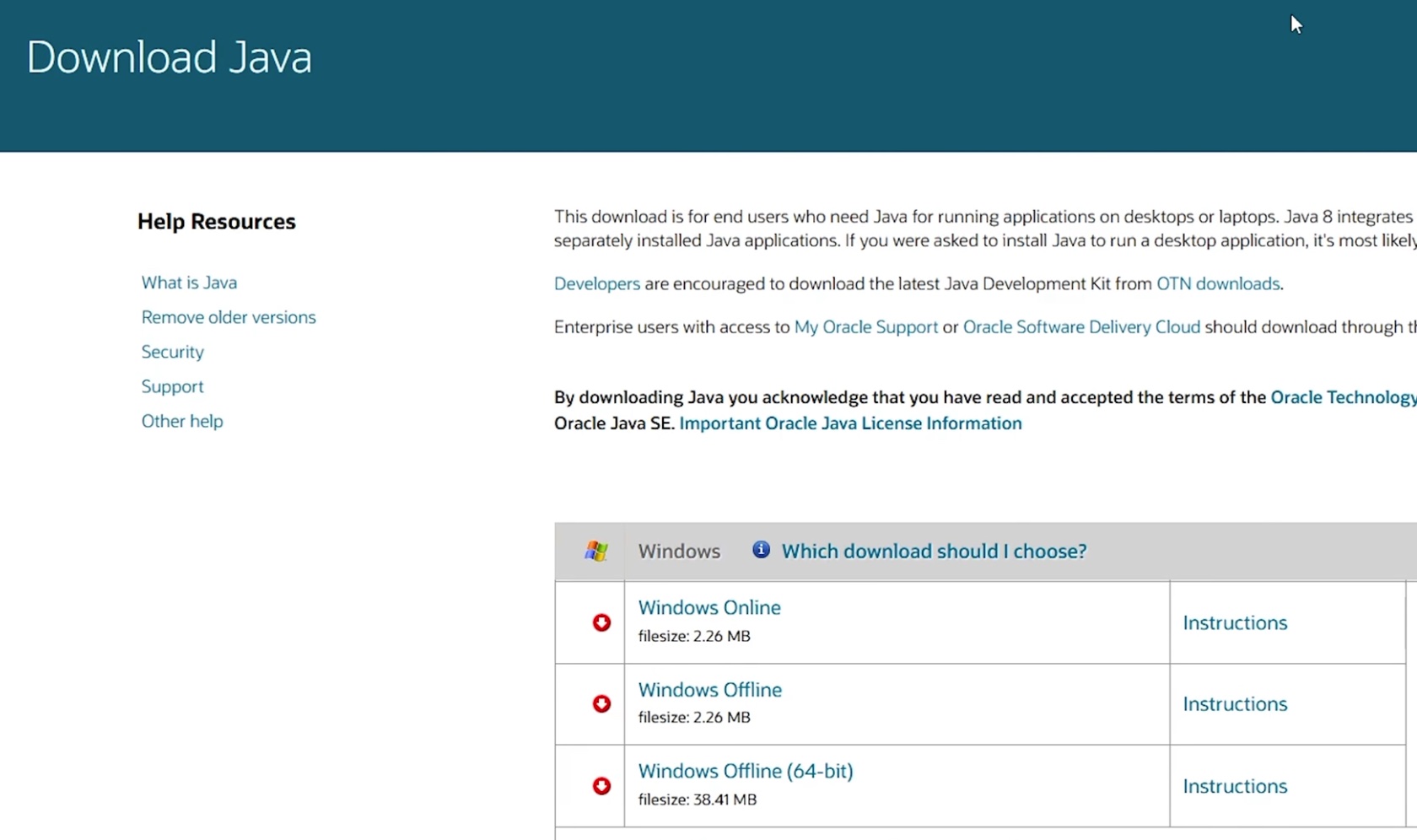
Download and Install the Latest Java
Open your web browser and search for "Java download." Go to the official Oracle Java site (or Adoptium for open-source alternatives) and grab the newest version — Java 21 or later is recommended for modern Minecraft versions.- Choose the installer for your operating system (Windows, macOS, or Linux).
- Run the installer and follow the on-screen instructions.
This ensures your system has the Java runtime needed to execute any.jarfile, including the Minecraftserver.jar.
-
Repair the .jar File Association with Jarfix
After installing Java, the next hurdle is often file association. Search online for "Jarfix" — it's a free, lightweight tool specifically designed for this problem. Download it from a trusted source (usually the top result).- Right-click the downloaded Jarfix.exe and run it as administrator.
- It will automatically reassociate all
.jarfiles with Java. - If it still doesn't work immediately, restart your computer and run Jarfix again.
Once these steps are complete, go back to your Minecraft server folder and double-click the server.jar file. It should now launch the server console properly. You'll likely see the EULA agreement prompt the first time — accept it by editing the eula.txt file to true, then run the server.jar again.
Bonus Tips for Smooth Minecraft Server Launching
- For the best experience, many players prefer running the server via command prompt (type
java -jar server.jarin the folder) instead of double-clicking. This lets you see live server logs and handle more RAM with flags like-Xmx4Gfor bigger servers. - If you're still asking "is the server.jar file supposed to open my Minecraft server after these fixes," and it isn't working, double-check that you installed the 64-bit Java version if you have a 64-bit system.
- This fix also works for modded setups, Fabric/Forge loaders, or any other Minecraft
.jarfiles that refuse to open.
With these simple adjustments, that confusing "is the server.jar file supposed to open my Minecraft server" question becomes a thing of the past. You'll have your server running in minutes, ready for building, exploring, and multiplayer fun. Happy crafting!