Unlock Epic Multiplayer Adventures: How to Join a Minecraft Server on Java Edition

Tired of building alone in your single-player world? Ready to team up with friends, explore massive community builds, or dive into thrilling minigames? Learning how to join a Minecraft server is your gateway to endless multiplayer fun on Java Edition. Whether you're wondering how to join a Minecraft server on PC for the first time or want a quick refresher on joining Minecraft servers easily, this guide breaks it down into simple, foolproof steps. You'll be playing with others in no time!
Step 1: Find a Server IP Address
Every Minecraft server has a unique IP address—think of it as the server's "home address" on the internet. Popular ones include huge networks like Hypixel (IP: mc.hypixel.net) for minigames, or smaller survival servers for relaxed building and exploration.
You can discover great servers through online lists, forums, or friends' recommendations. Once you have the IP (it usually looks like "play.example.com" or "123.45.67.89"), you're ready for the next step in how to join a Minecraft server.
Step 2: Launch Minecraft Java Edition
Open your Minecraft Launcher and make sure you're running the Java Edition (not Bedrock—those use a different process). Select the correct version that matches the server (most are on the latest stable release), then hit Play to load the main menu.
Step 3: Head to the Multiplayer Menu
From the main menu, click Multiplayer. If it's your first time, you might see a warning about online play—simply check the box to skip it next time and click Proceed. This takes you to the server list, which might be empty at first.
Step 4: Join Quickly with Direct Connection
For a one-time join or testing an IP, use the fastest method:
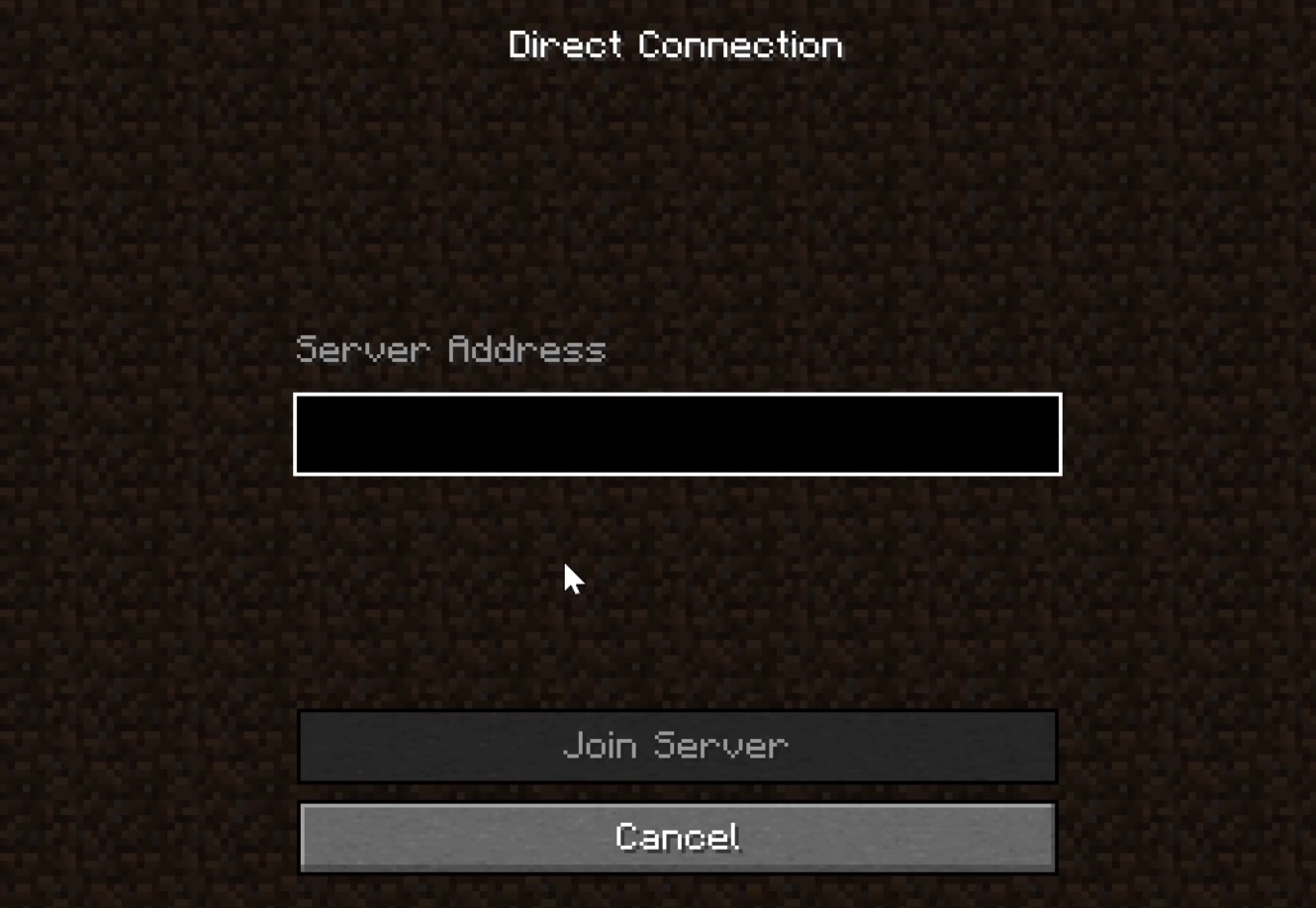
- Click Direct Connection at the bottom.
- Paste or type the server IP address into the box.
- Hit Join Server.
Boom—you're in! This is perfect if you're trying out different servers without cluttering your list.
Step 5: Add the Server to Your List for Easy Access
Want to return to the same server repeatedly? Adding it to your list makes how to join a Minecraft server even simpler next time:
- In the Multiplayer menu, click Add Server.
- Give it a friendly name (like "Hypixel Minigames" or "Survival World") so you remember it.
- Enter the exact IP address in the second field.
- Click Done.
The server will now appear in your list. Just double-click it anytime to connect. You can add as many as you want—great for switching between survival, creative, or PvP servers!
Troubleshooting Tips for Smooth Joining
- Version mismatch? Double-check that your game version matches the server's.
- Connection issues? Ensure your internet is stable and try again.
- Port needed? Most IPs include the default port (25565), but if specified (like "ip:port"), include it.
That's it! Mastering how to join a Minecraft server opens up a whole new world of collaboration, competition, and creativity. Grab a few IPs, add your favorites, and start exploring today. Whether it's battling on massive networks or chilling on private worlds with friends, joining Minecraft servers on Java Edition has never been easier. Jump in and let the adventures begin!